


Sometimes it’s useful to highlight your data — for example, to show which values meet a target or lie above average. In Power BI there are a couple of ways to do this: with Rules or with DAX. Let’s first look at how it works with Rules.
Example with Rules
I’m using the Superstore dataset and want to see which Sub-Categories meet my sales target.
1) Start with a simple bar chart showing Sales by Sub-Category.
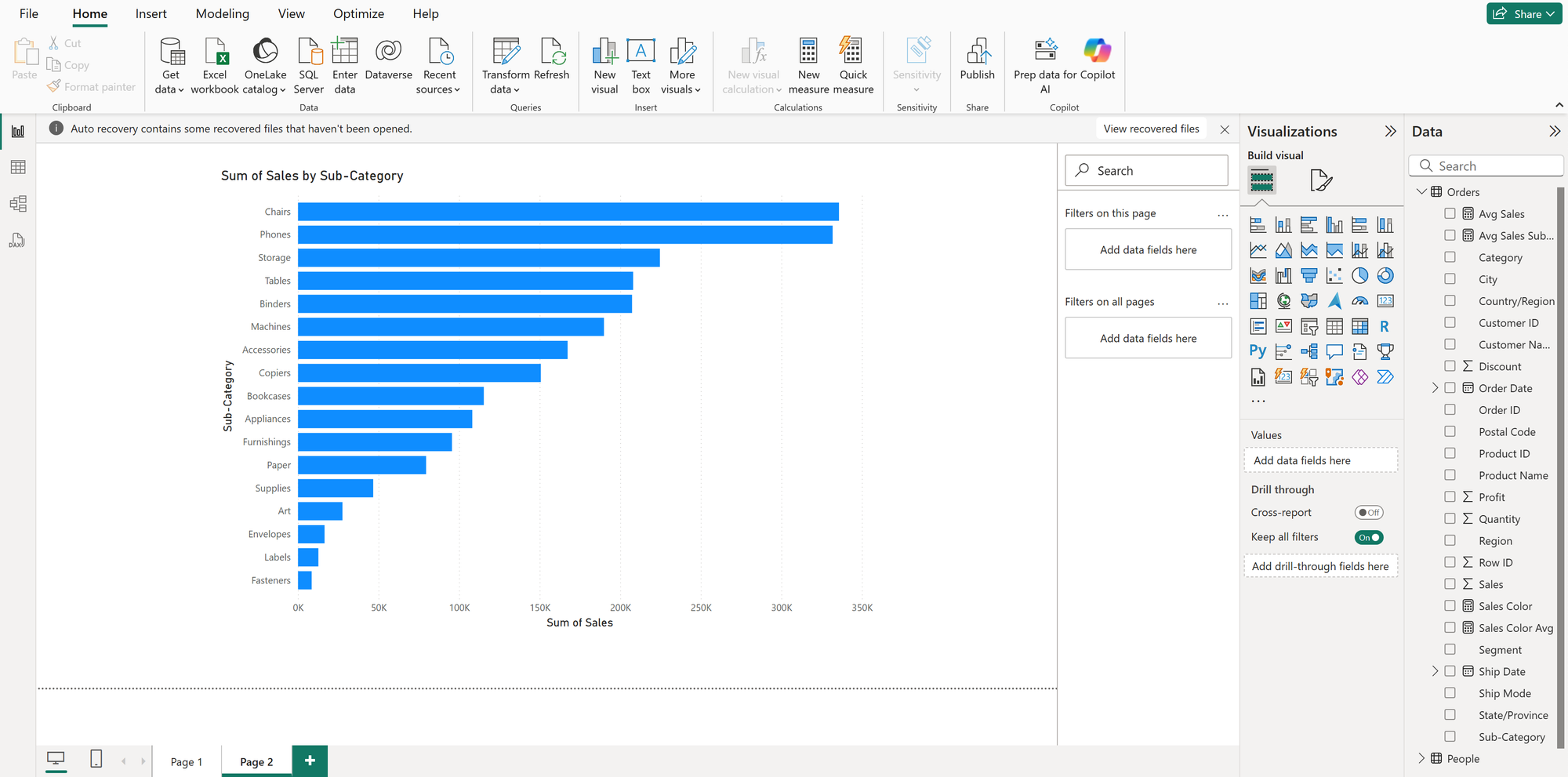
2) Let’s say the sales target is 120,000. Go to Format Visual → Visual → Bars → Color → fx to open the configuration window.
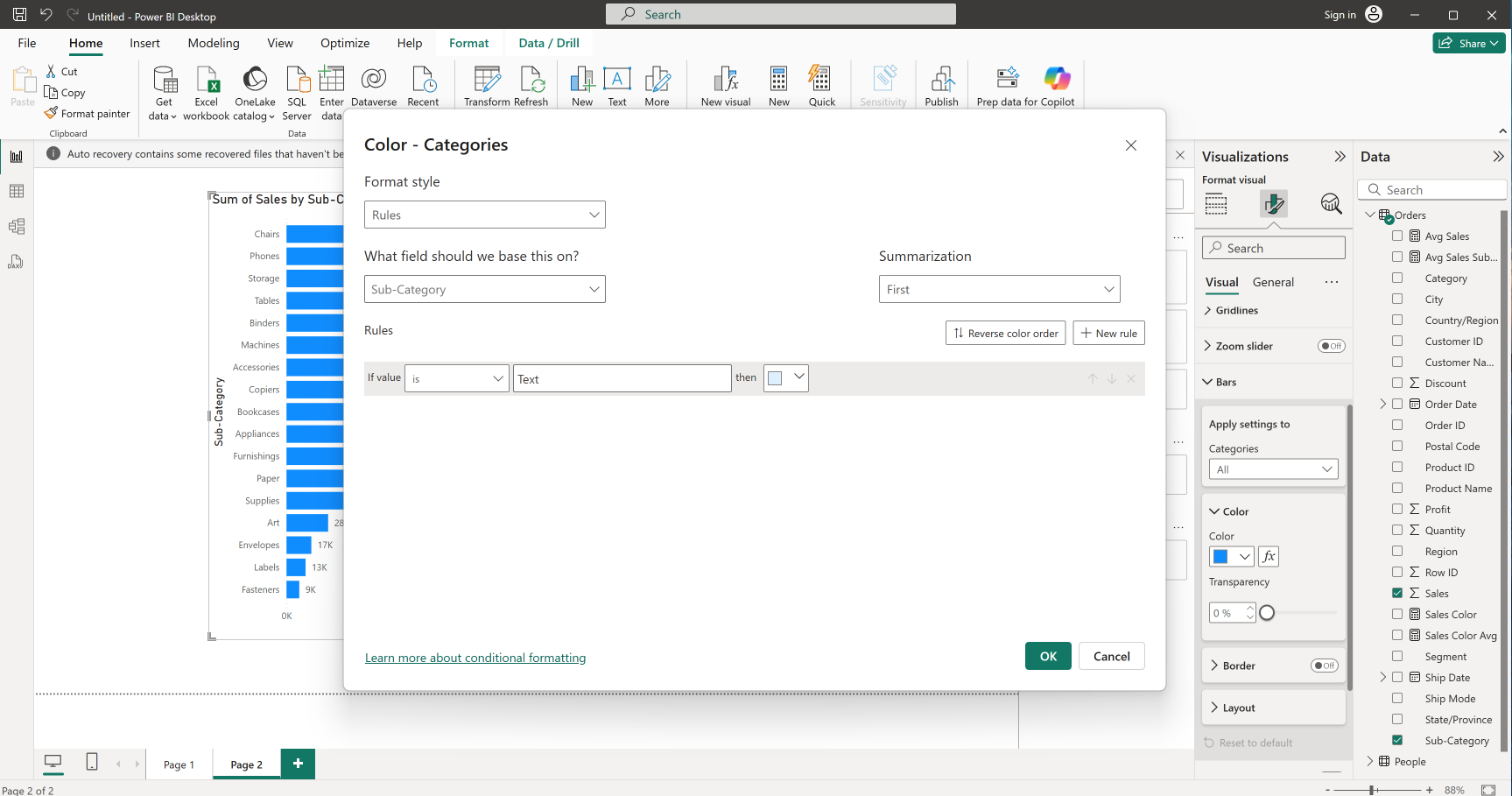
3) Under “What field should we base this on?” select Sales, and adjust the suggested formula. First, set the color for values below the target, and then add a new rule for values meeting or above the target. Since Rules don’t give us much flexibility (we must define value ranges), I simply typed a very large number for the upper end of the target range.
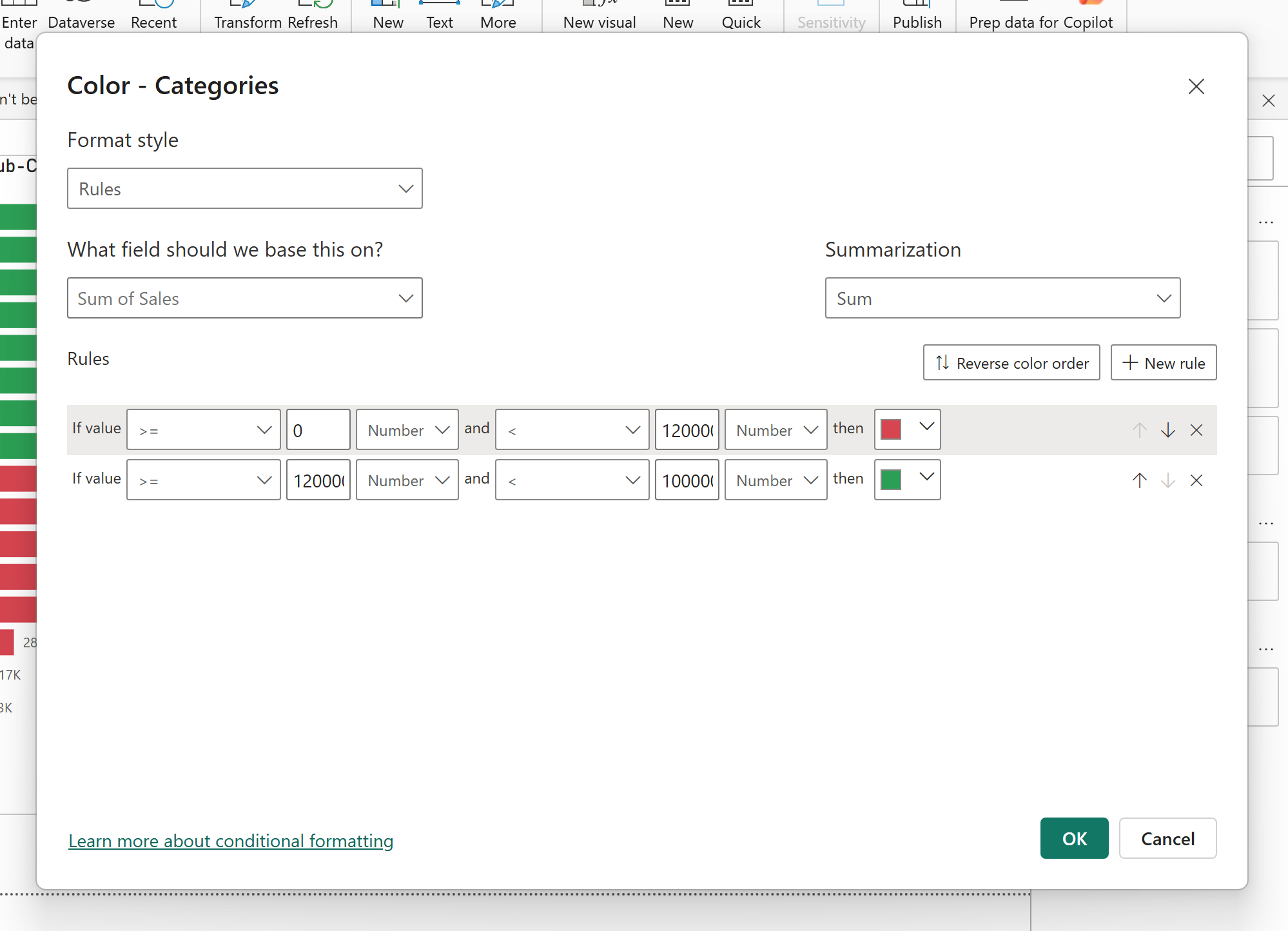
4) Now we can quickly identify which Sub-Categories meet the sales target. 🙂
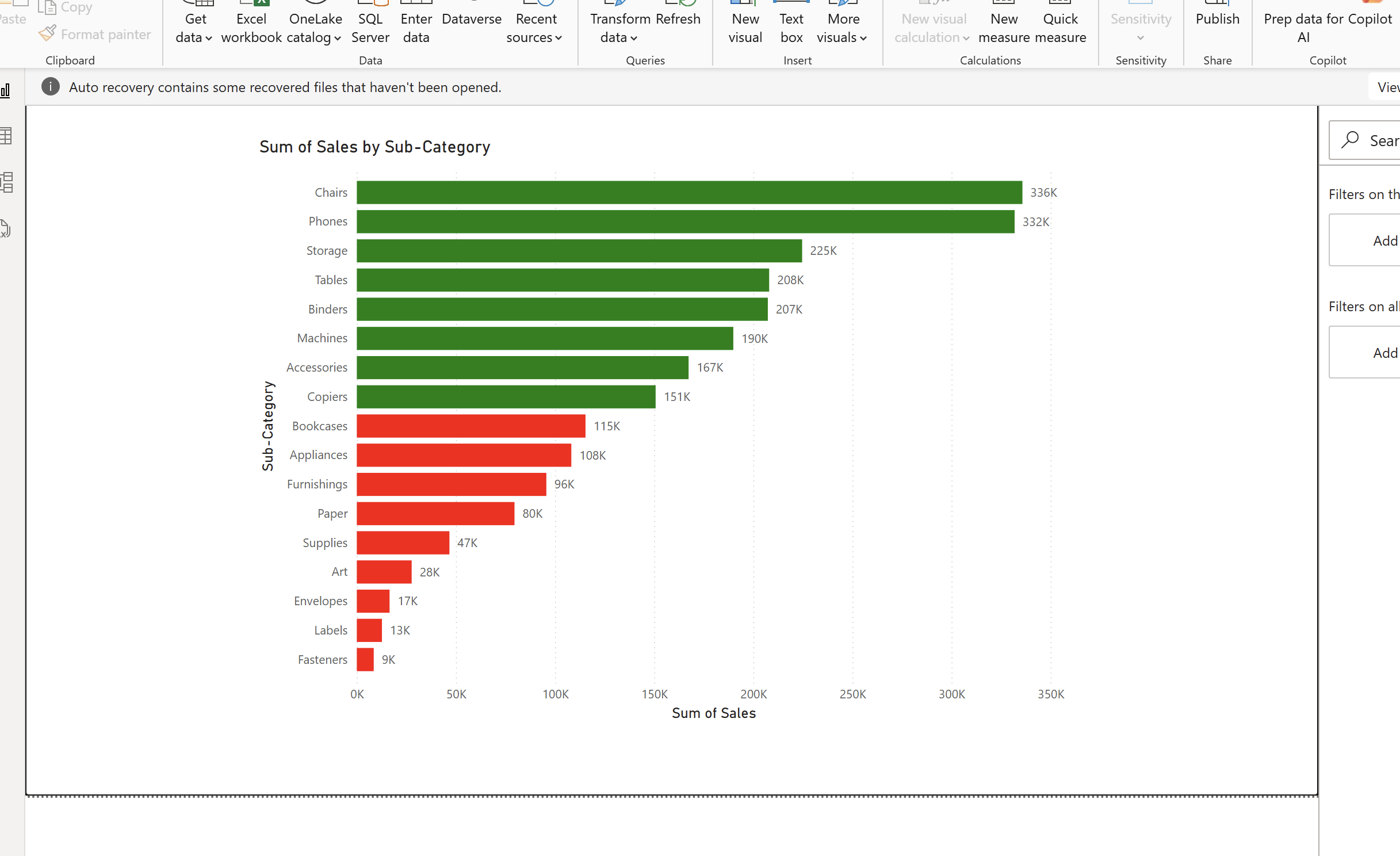
Example with DAX
Let’s achieve the same result with DAX.
1) Again, start with the bar chart showing Sales by Sub-Category. (Tip: under Format Visual → Bars → Color, click the small icon next to fx to remove the previous formatting.)
2) Keep the same target of 120,000. Create a new measure with this formula:
Sales Color =
IF(
SUM(Orders[Sales]) >= 120000,
"green",
"red"
)
3) Go to Format Visual → Visual → Bars → Color → fx.
4) In the configuration window, set Format style to Field value and in “What field should we base this on?” select your new Sales Color measure.
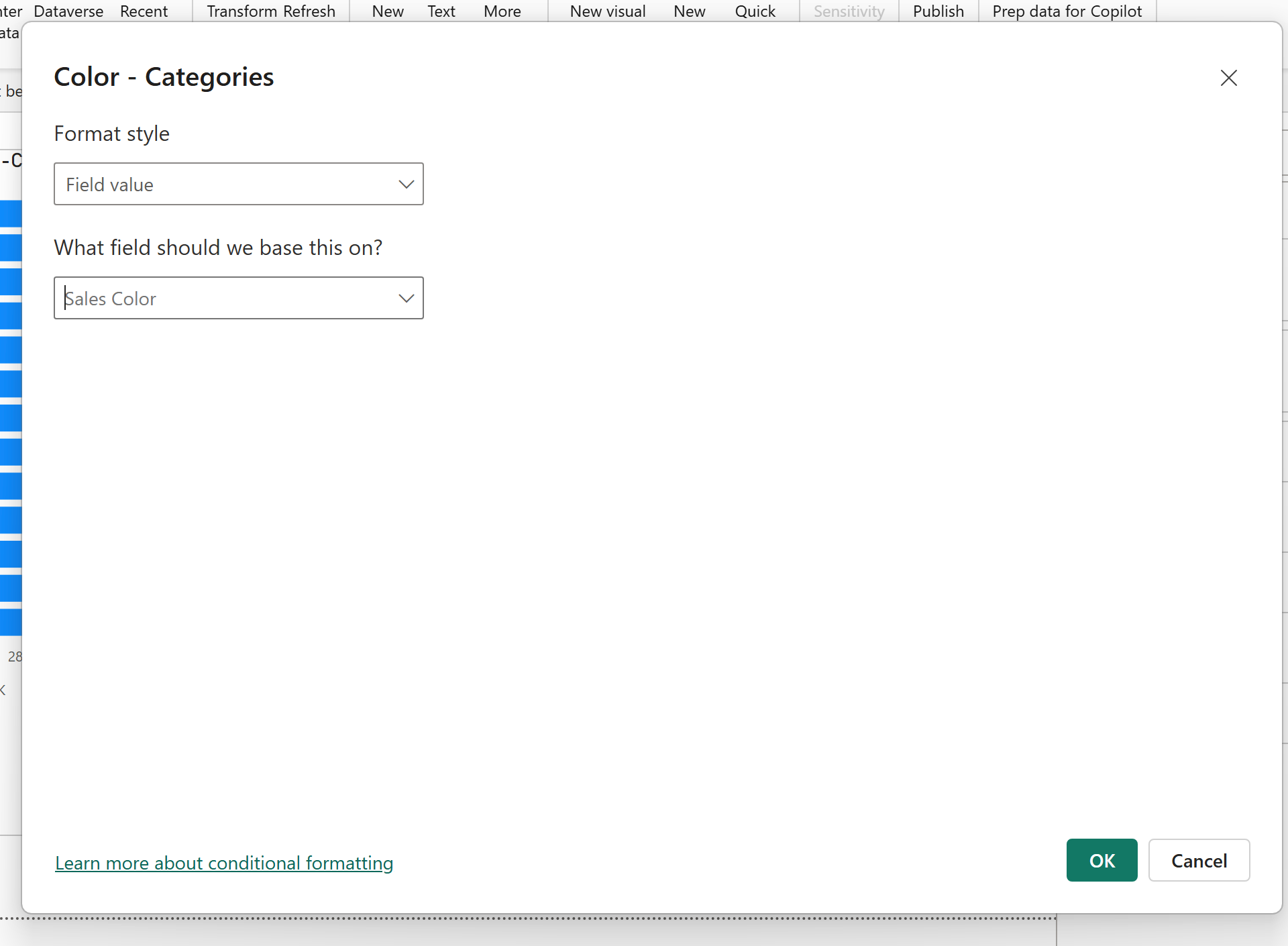
5) Done! With just one simple calculation we achieved the same highlighting, but with more flexibility than Rules.
With Rules, you can set up quick conditional formatting directly in the UI. With DAX, you get much more flexibility — for example, you could highlight above/below average, top N products, or custom thresholds.
Hope this was useful 🙂