


You created a custom date table in Power BI and wanted to show all months as texts, e. g. Jan, Feb, Mar and so on but you are seeing something like this in your chart?
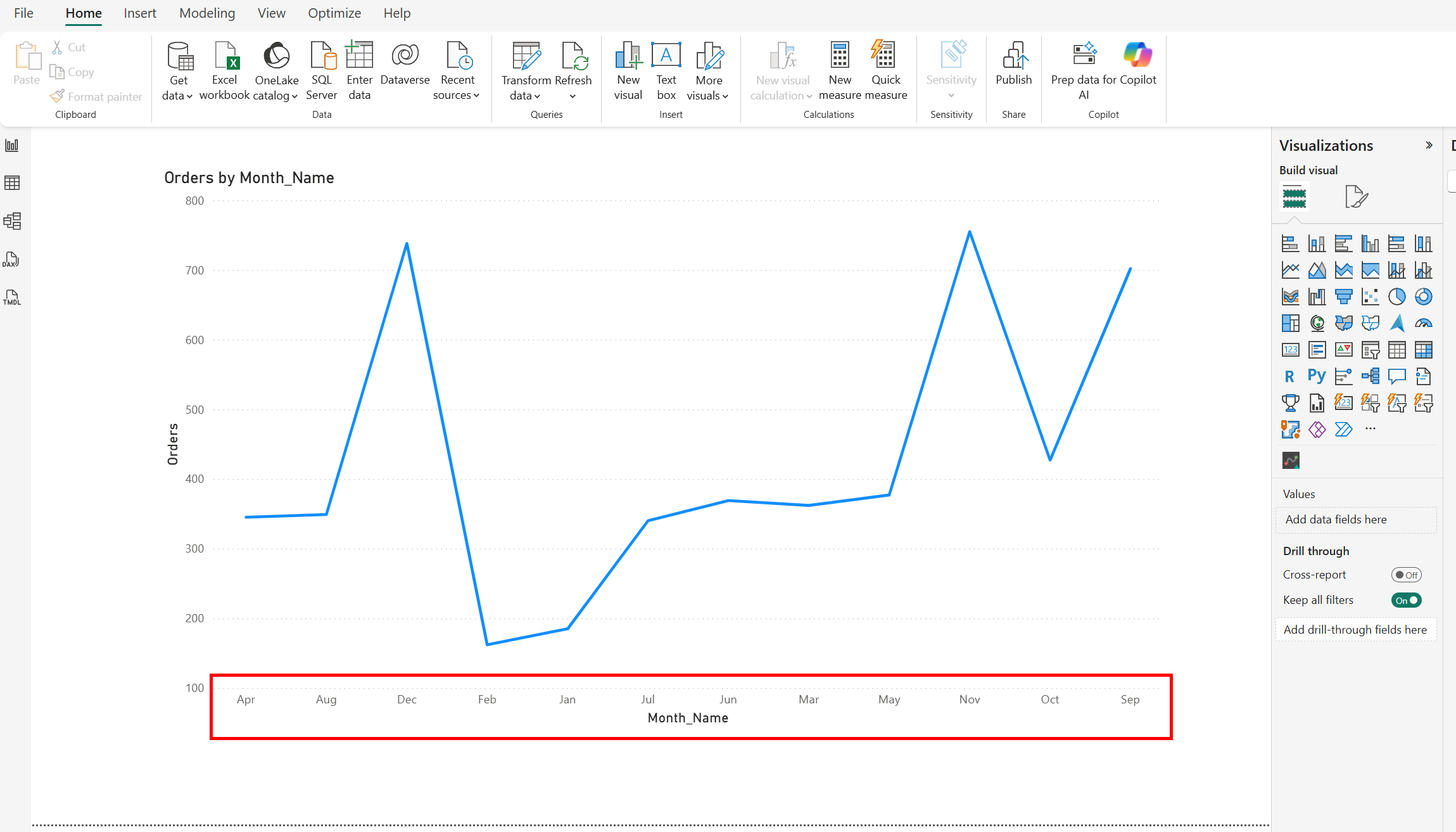
These month names are sorted alphabetically. But we want to have the correct month order. So how can we fix it?
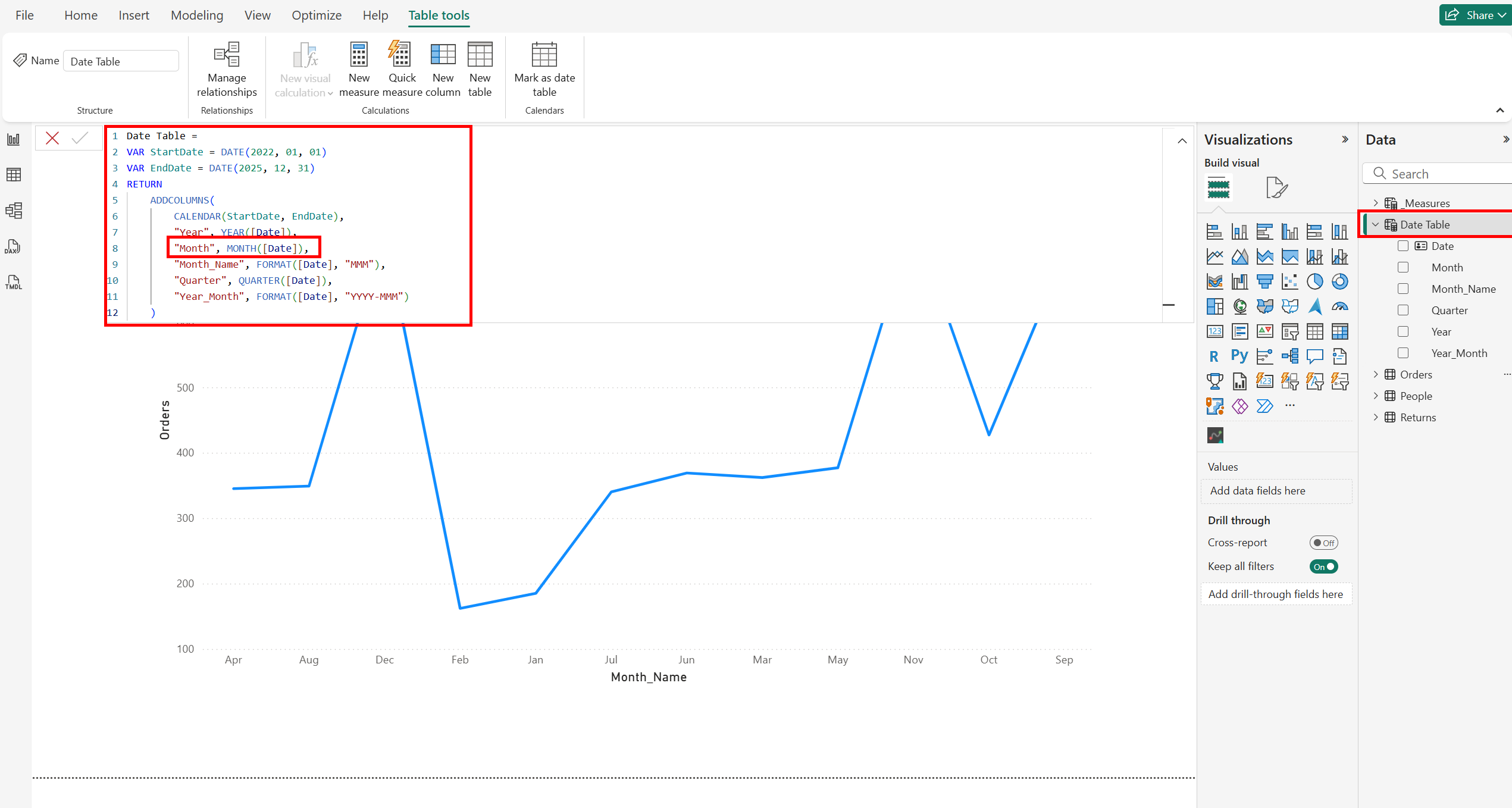
Step 1: Go to your date table and check your DAX code you used to created the date table. Make sure to create a column for the month number using the MONTH() function. This function will return the month as a number (1-12).
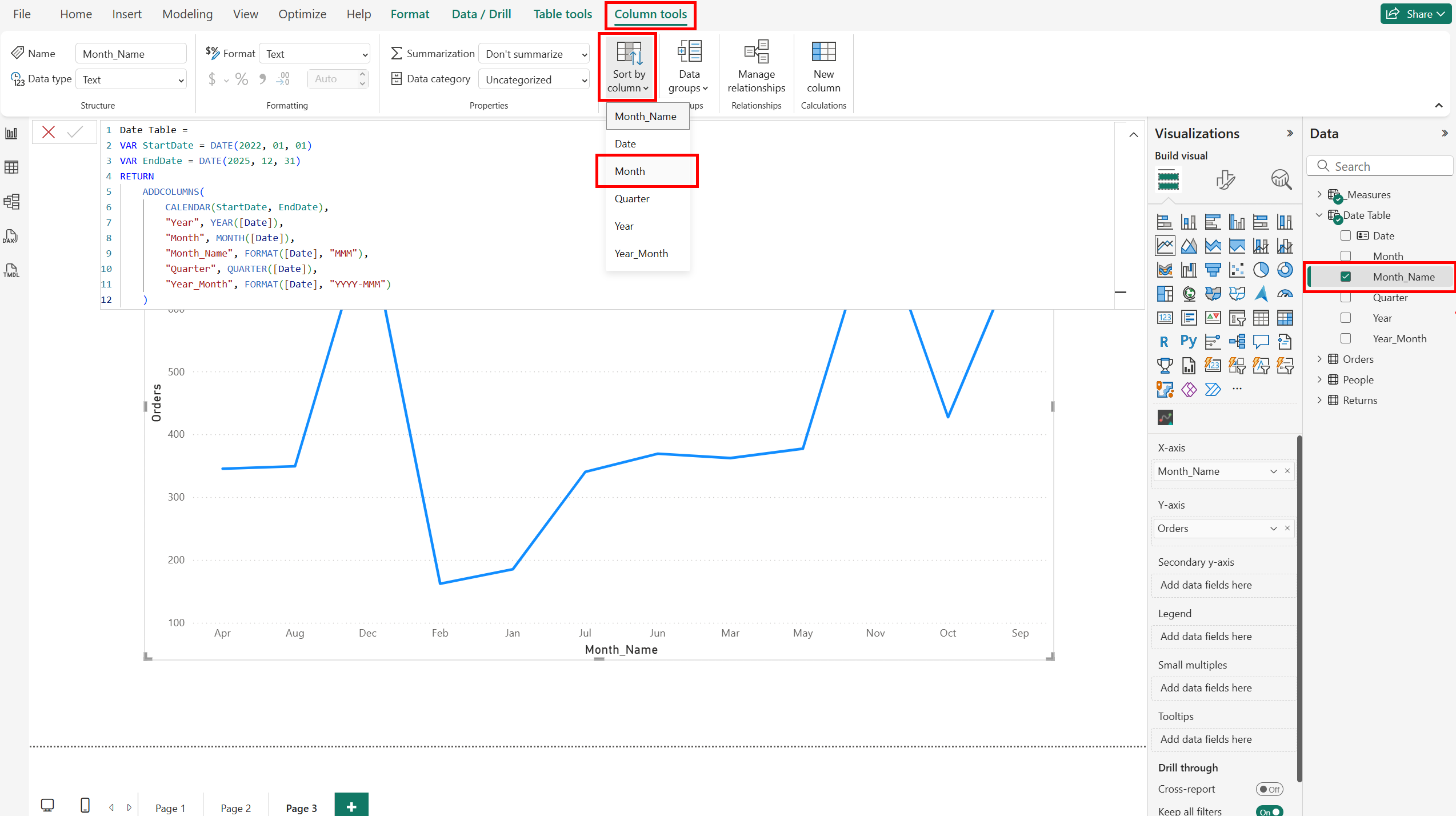
Step 2: Click on the column for month names in your date table und look for the Sort by column tool in the Column tools tab. Click on the small down arrow and choose to sort by column Month.
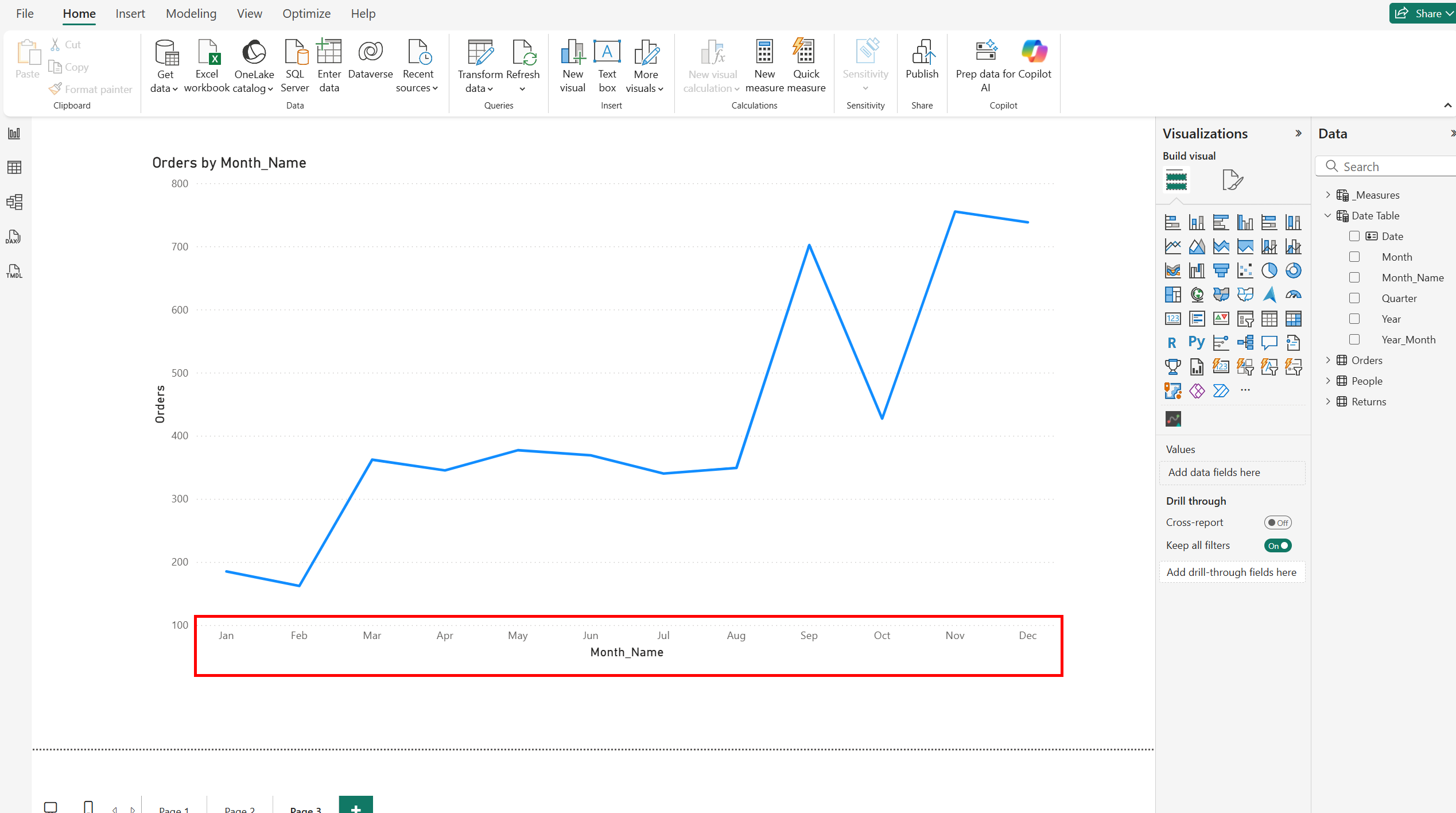
And that's it! Now your month names should be sorted correctly like this.
See you in the next blog!