


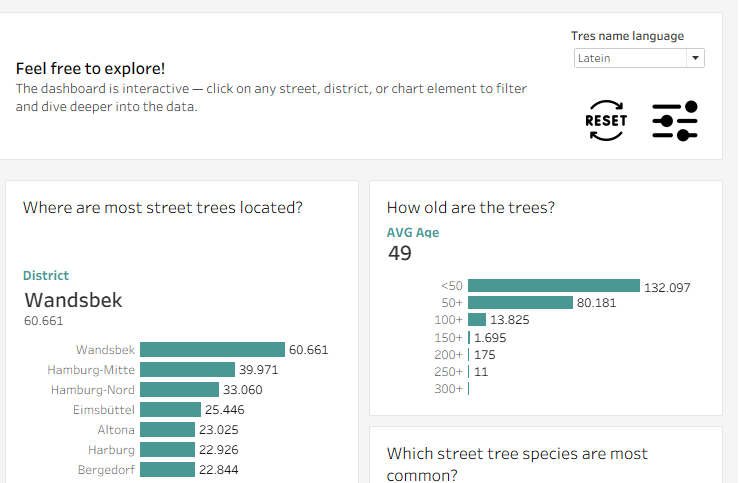
During the training period, we created a personal project dashboard, and my topic was Hamburg Street Trees Insights.
I wanted to create a truly explorative dashboard with many filters and actions. You can find the dashboard here if you’d like to explore it and discover the variety of trees we have in Hamburg.
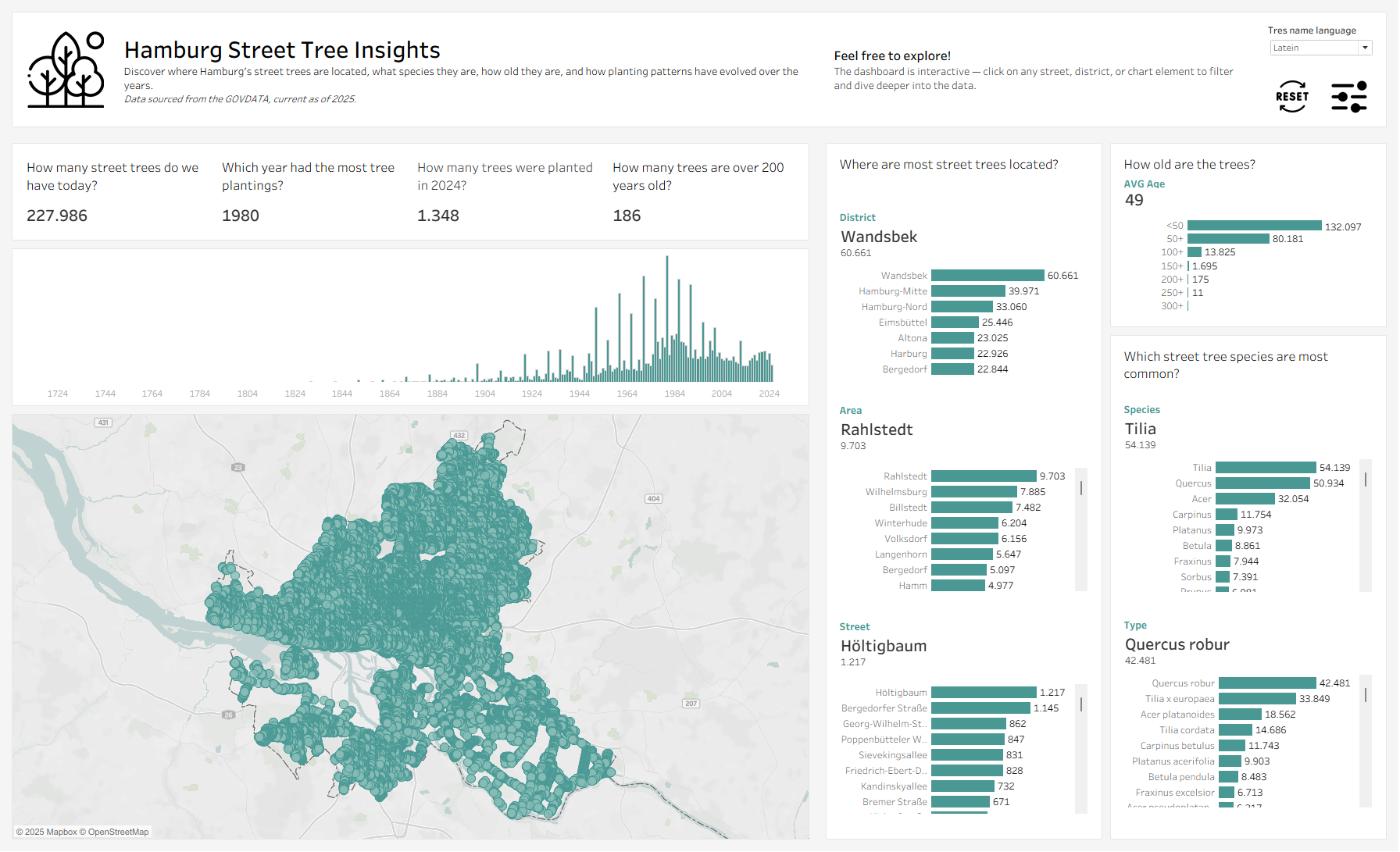
Two features were especially useful for this dashboard.
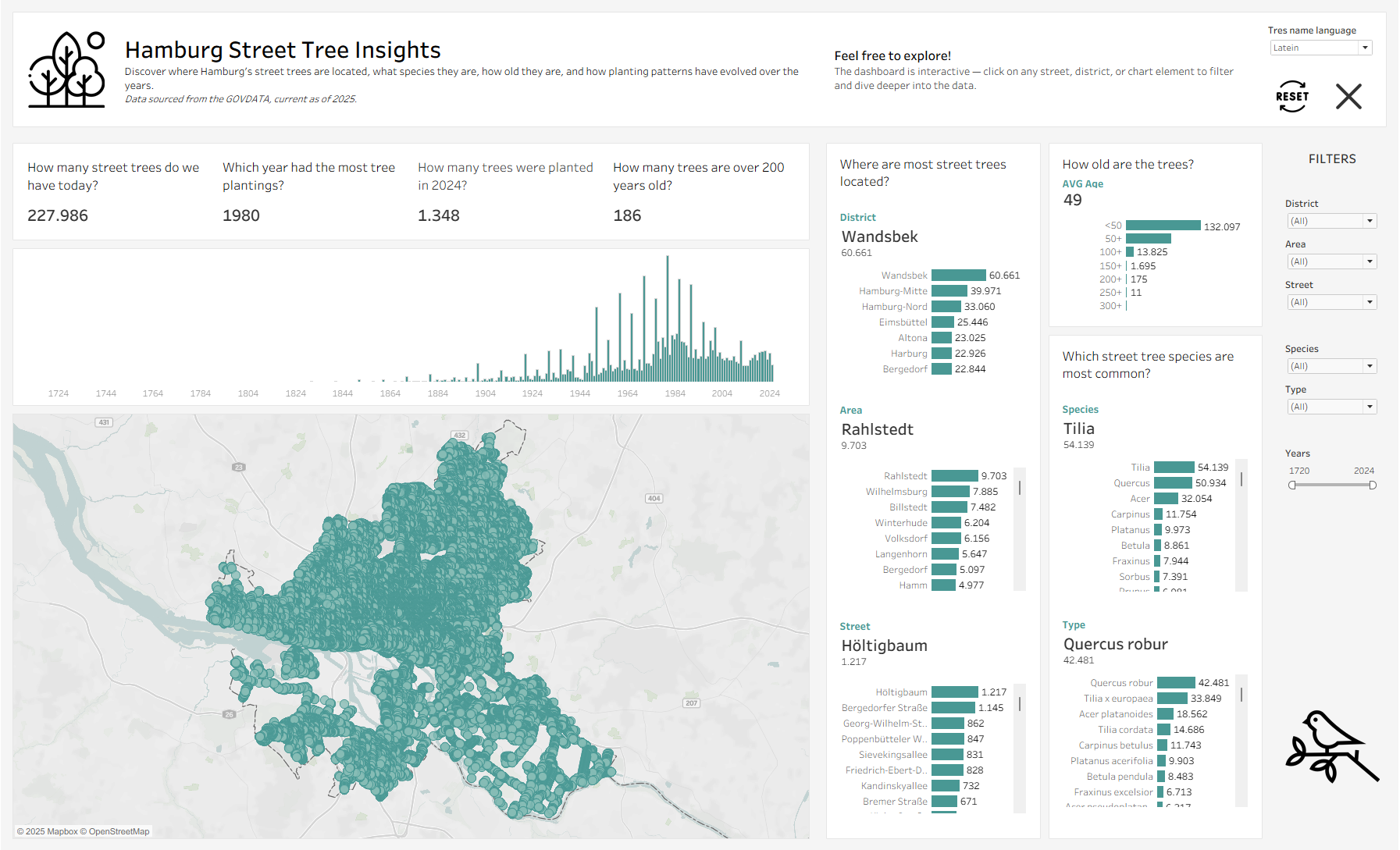
The first one is the reset button. I highly recommend Kristine Wiesner post on this topic—it’s a great resource for learning how to create it. It helped me a lot, especially because the dashboard has many filter options.
The second feature is hiding a container with filters, and this is the part I want to describe in this blog: how I created it.
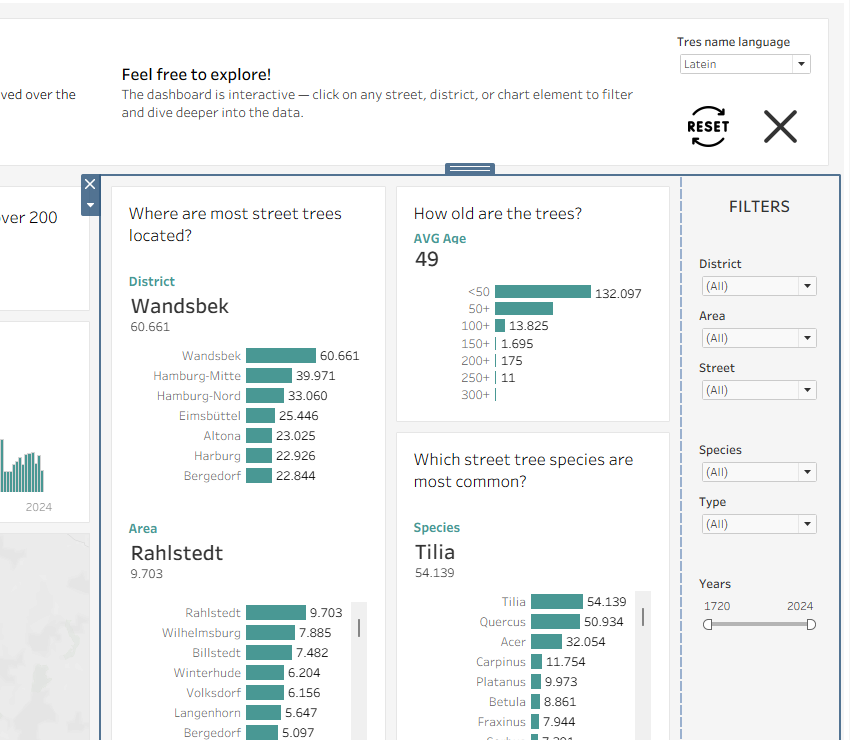
First, you need to create the container as a regular container in your dashboard. What’s important is that this container must be placed inside another container. The outer container doesn’t need to have a fixed size.
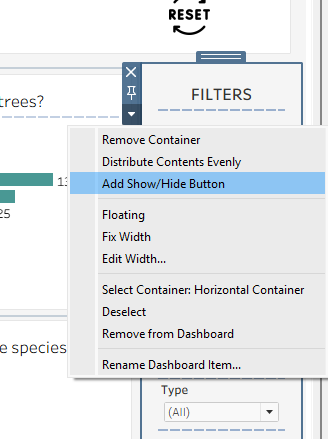
Next, select the container you want to hide. Open the menu and click Show/Hide Button.
A floating field with some controls will appear.
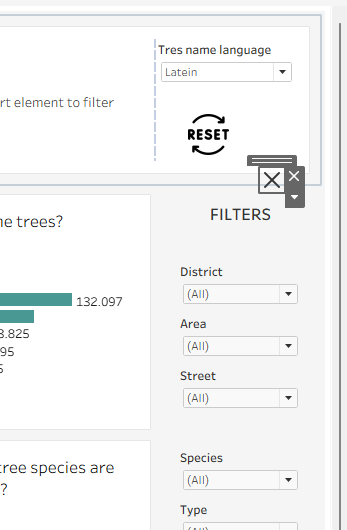
Press the button, hold Shift, and drag it into the container where you want the button to be located. That’s it.
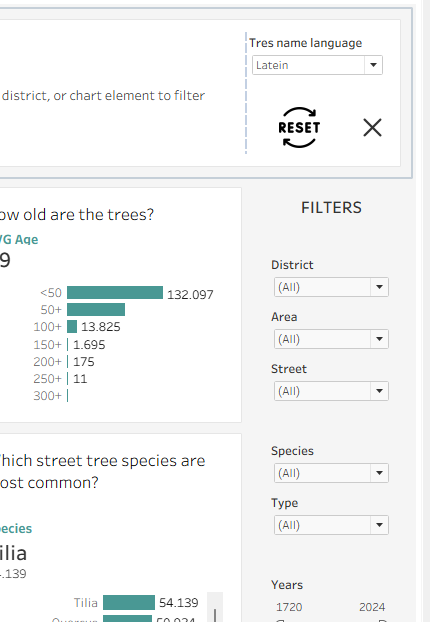
Then hold Alt and click the button to check if it works 😉.
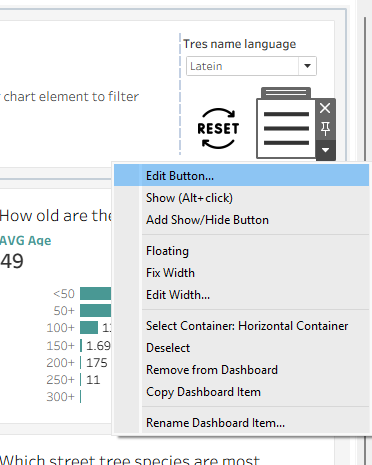
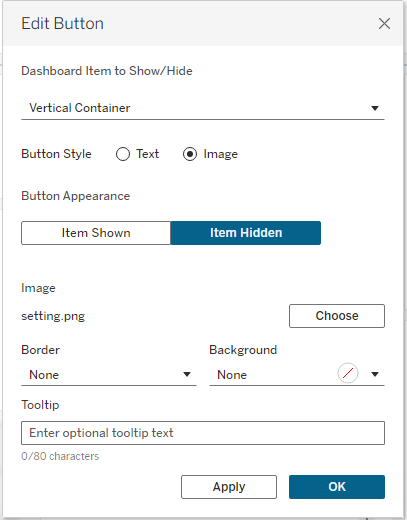
I also wanted to change the icon. To do this, hide the container, open Edit Button, and choose the icon you prepared earlier.
It’s all very simple, but these small features are incredibly useful. The hidden container can also be set to float, which looks impressive and can be very helpful.
Photo by Sergei Karakulov on Unsplash